
Download Net Nanny – Parental Control Software, Safe Internet for Kids
Introduction & Overview
Net Nanny is a comprehensive parental‑control solution designed to give parents real‑time visibility and control over their children’s digital lives. In today’s hyper‑connected world, kids spend hours browsing, gaming, and streaming on a variety of devices. Net Nanny steps in as a secure guardian, allowing families to block adult content, violent media, drug‑related sites, and any other material deemed inappropriate.
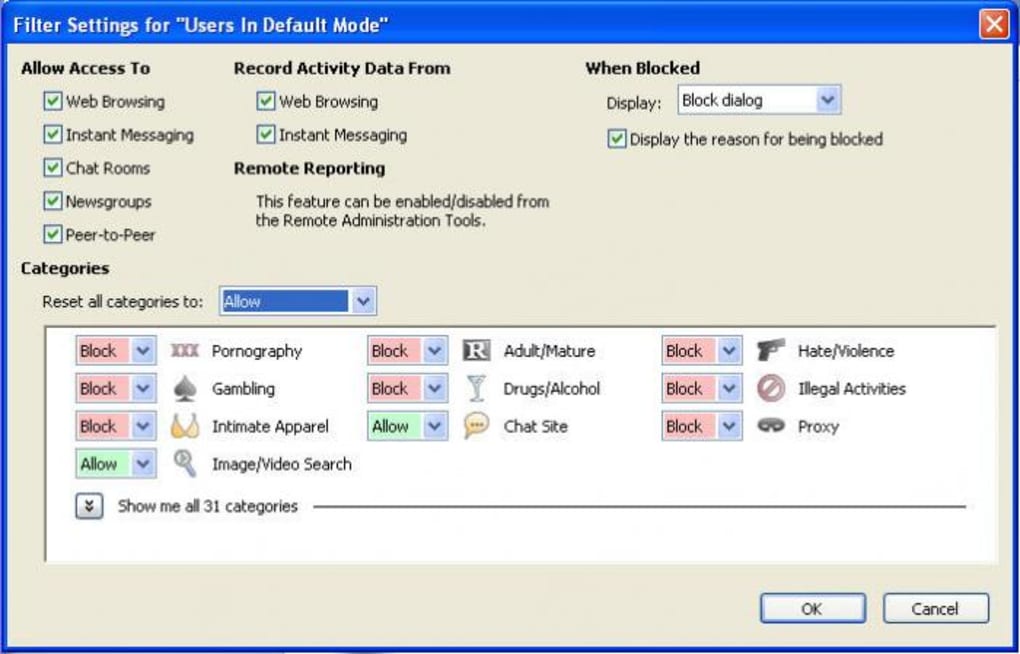
With 31 customizable categories, parents can fine‑tune the filter to match the age and maturity of each child. The software also integrates Safe Search across popular engines like Google and Yahoo, ensuring that even accidental searches are filtered before they appear. Beyond content blocking, Net Nanny offers time‑management tools, enabling parents to set daily usage limits, schedule device‑free periods, and restrict access to specific applications or games.
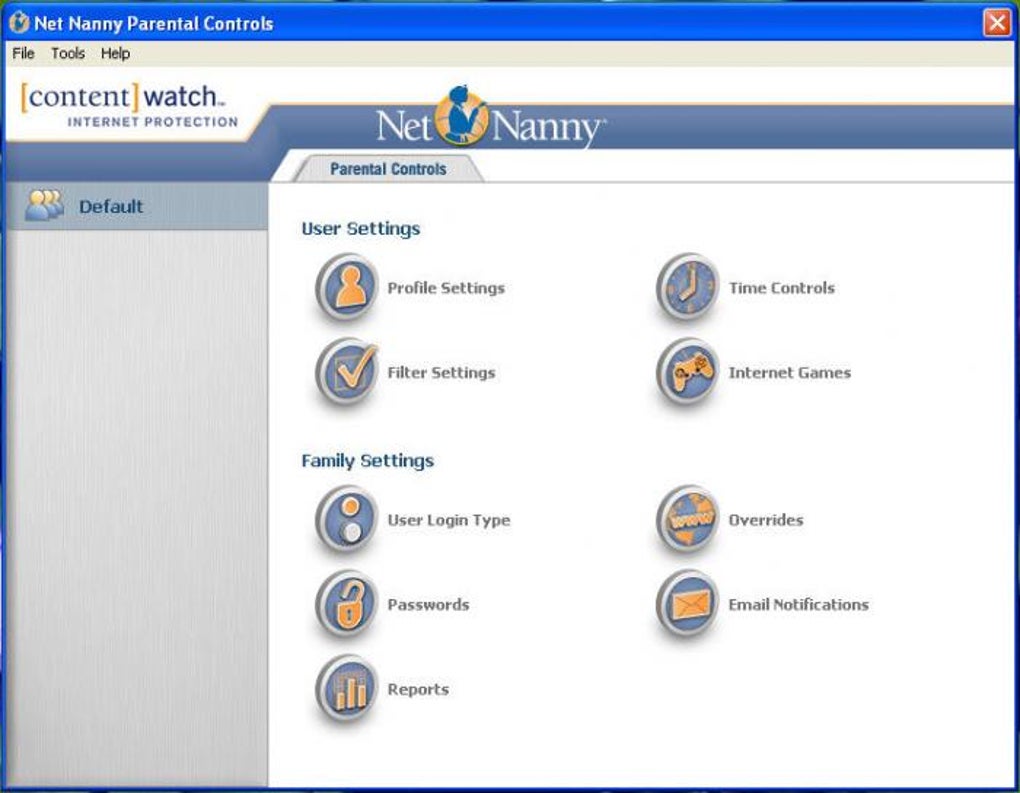
Each child can have a dedicated profile, complete with individual passwords and login types, making it easy to enforce personalized rules without constant manual adjustments. Detailed activity reports are generated automatically, highlighting attempts to bypass filters, unusual login times, and the overall amount of screen time. While the initial installation may require a few minutes of patience, the payoff is a robust, user‑friendly interface that empowers families to create a safer online environment.
Whether you’re protecting a preschooler’s first foray into the web or managing a teenager’s social media habits, Net Nanny provides the tools, flexibility, and peace of mind that modern parents need.
Key Features that Set Net Nanny Apart
- Dynamic Content Filtering – Real‑time analysis of web pages, videos, and apps with AI‑driven algorithms that adapt to new threats.
- 31 Pre‑Set Categories – Block or allow content across categories such as adult, violence, gambling, drugs, and social media.
- Safe Search Integration – Automatic Safe Search activation for Google, Bing, Yahoo, and other major search engines.
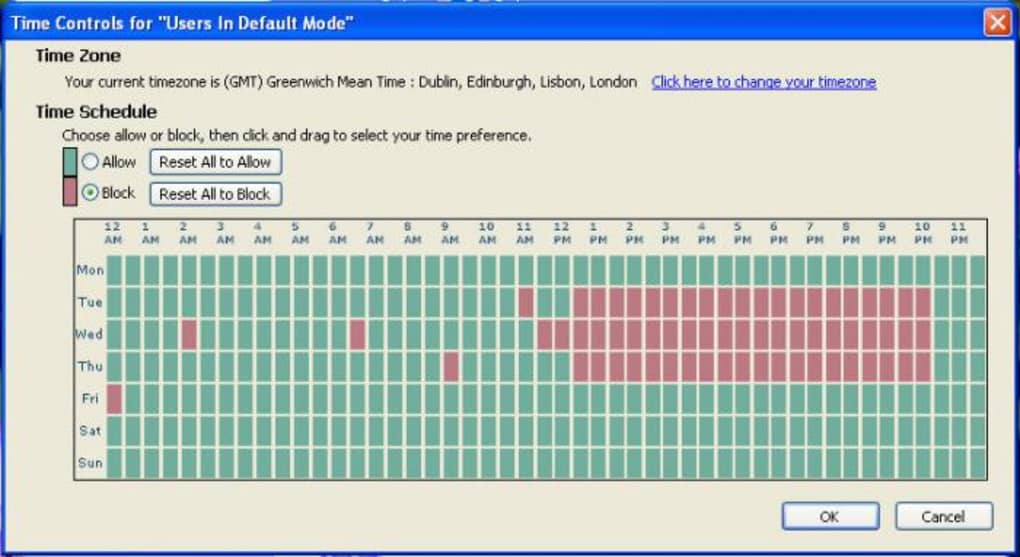
- Time Management & Scheduling – Set daily usage caps, bedtime limits, and device‑free zones to encourage healthy habits.
- App & Game Controls – Restrict access to specific games or apps, and receive alerts when a child attempts to launch blocked software.
- Multiple Child Profiles – Create individual accounts with unique filters, passwords, and reporting for each family member.
- Real‑Time Alerts & Reports – Receive instant notifications of policy violations and weekly summary reports via email.
- Remote Management Dashboard – Control settings from any browser or mobile device, allowing on‑the‑go adjustments.
- Location Tracking (Optional) – View the geographic location of devices to ensure they’re being used where expected.
- Secure Cloud Sync – Settings and reports are stored in encrypted cloud storage, guaranteeing data integrity across devices.
These features combine to form a layered defense strategy that not only blocks harmful content but also educates children about responsible internet use. Net Nanny’s AI engine continuously learns from emerging trends, so the filter stays relevant even as new websites and apps appear. The granular control over categories lets parents be as permissive or restrictive as they wish, while the scheduling tools help enforce screen‑time rules without endless arguments. For families that travel or have multiple homes, the remote dashboard ensures that every device—whether a Windows laptop, a Mac desktop, an Android tablet, or an iOS phone—remains under the same protective umbrella.
Installation, Setup & Compatibility
Getting Net Nanny up and running is a straightforward process, though it does involve a few steps to ensure optimal performance. Begin by visiting the official Net Nanny website and downloading the installer that matches your operating system. The software supports Windows 10/11, macOS 10.15 and later, Android 7.0+, and iOS 13+. For each platform, the installer includes a brief wizard that guides you through the setup.
- Download the Installer – Choose the appropriate version (Windows, macOS, Android, iOS) and click “Download”. The file is signed and scanned for malware, guaranteeing a secure install.
- Run the Installer – On Windows, double‑click the .exe file; on macOS, open the .dmg and drag Net Nanny to the Applications folder. Mobile devices will prompt you to install from the App Store.
- Create an Account – During the first launch, you’ll be asked to create a Net Nanny account. This centralizes your subscription, device management, and reporting.
- Configure Child Profiles – After signing in, navigate to “Profiles” and add a new child. Assign a unique password, select the appropriate age range, and choose which categories to block.
- Set Time Limits & Schedules – In the “Schedule” tab, define daily usage windows, bedtime restrictions, and optional “Homework Mode” that temporarily lifts restrictions for study periods.
- Enable Remote Monitoring – Turn on the web‑based dashboard to receive alerts on your phone or email. You can also enable location tracking if desired.
- Finalize & Test – Save all settings and run a quick test by attempting to access a blocked site. Net Nanny should intercept the request and display a friendly block page.
Net Nanny is compatible with Windows, macOS, Android, and iOS, providing a unified parental‑control experience across all major platforms. The software also supports multiple devices per subscription, making it ideal for households with several smartphones, tablets, and computers. Once installed, the application runs quietly in the background, consuming minimal system resources while continuously scanning traffic for prohibited content. Regular updates are pushed automatically, ensuring you always have the latest filter definitions and security patches. If you encounter any issues, Net Nanny’s support portal offers live chat, knowledge‑base articles, and a community forum where other parents share tips and solutions.
Pros, Cons & Frequently Asked Questions
Pros
- Highly customizable content filters with 31 categories.
- Real‑time AI‑driven analysis catches new and hidden threats.
- Cross‑platform compatibility (Windows, macOS, Android, iOS).
- Robust time‑management tools that reduce screen‑time disputes.
- Detailed activity reports and instant alerts keep parents informed.
Cons
- Initial installation can feel lengthy for non‑technical users.
- Some advanced features (like location tracking) require higher‑tier plans.
- Occasional false positives may block legitimate educational content.
- Mobile app interface is less intuitive than the desktop dashboard.
- Subscription pricing is higher than a few free alternatives.
Frequently Asked Questions
How does Net Nanny differ from built‑in parental controls on Windows or macOS?
While native OS controls offer basic website blocking and screen‑time limits, Net Nanny provides a far more comprehensive suite. Its AI‑driven content scanner evaluates pages in real time, catching dynamic or newly created sites that OS filters might miss. Additionally, Net Nanny’s 31 content categories, remote dashboard, and cross‑device synchronization give parents granular control that native tools simply cannot match.
Can I set different restrictions for each child in the same household?
Absolutely. Net Nanny allows you to create separate profiles for each child, complete with unique passwords, age‑based filter presets, and individualized time‑management rules. This means a 7‑year‑old can have stricter content blocks and shorter daily limits, while a teenager can enjoy a broader range of permissible sites and longer usage windows, all managed from a single dashboard.
Is the software safe to use on my devices? Does it collect personal data?
Net Nanny adheres to industry‑standard encryption for all data transmitted between devices and its cloud servers. Personal data such as usernames, passwords, and activity logs are stored securely and are never sold to third parties. The software’s primary purpose is to monitor and filter content, not to harvest personal information, and it complies with GDPR and CCPA regulations.
What happens if my child tries to uninstall or disable Net Nanny?
Net Nanny includes a tamper‑proof mode that prevents users without administrative privileges from uninstalling or modifying the core settings. If a child attempts to disable the software, an alert is sent to the parent’s dashboard, and the attempt is logged in the activity report. This ensures that the protection remains active even if the child is tech‑savvy.
Can I use Net Nanny on multiple devices with a single subscription?
Yes. Net Nanny’s standard subscription covers up to five devices, which can be a mix of Windows PCs, Macs, Android tablets, and iOS phones. If you need coverage for more devices, higher‑tier plans are available at an additional cost. All devices share the same profile settings, so you only need to configure filters once.
Conclusion & Call to Action
Net Nanny stands out as a powerful, flexible, and user‑friendly parental‑control suite that addresses the most pressing concerns of modern families. Its combination of AI‑driven content filtering, extensive category selection, and robust time‑management tools provides a level of protection that goes far beyond basic OS controls. While the initial setup may require a few extra minutes, the long‑term benefits—peace of mind, reduced screen‑time conflicts, and detailed visibility into online activity—make it a worthwhile investment for any parent serious about safeguarding their children’s digital experiences.
Whether you’re protecting a young child’s first forays onto the web or guiding a teenager through the complex world of social media, Net Nanny offers the scalability and precision needed to adapt as they grow. Ready to take control of your family’s online safety? Download Net Nanny today and start building a safer, more balanced digital routine for your household.
Net Nanny delivers an impressive blend of security, flexibility, and ease‑of‑use. Parents appreciate the granular controls, while kids benefit from a smoother, less intrusive browsing experience. The occasional false positive is a minor trade‑off for the overall high level of protection.







